What you get
Every delivery location is a GPS pin — numbered, staged, and on the project map
Drop a pin at each installation location before material leaves the shop. Log the stage — In Fabrication, Scheduled Delivery, Delivered to Yard, Ready to Install, Installed, Pending Inspection, Accepted — and update it as the material moves through the chain. Your PM sees the full project at a glance using HeavyCivilHelper's project map: teal pins done, amber on deck, gray still in fab.
COC number, delivery ticket, and responsible party logged at the pin — not back at the office
When your driver makes a drop, they open the pin, log the COC number, delivery ticket number, and the name of the person who accepted the material before they leave. That record is timestamped and geolocated in HeavyCivilHelper. No paper ticket to scan back at the office. No spreadsheet to reconcile at the end of the week. The COC trail is already at the pin when the agency inspector asks.
Staging yard tracked separately from installation locations
Your laydown yard is its own pin in HeavyCivilHelper. Log inventory count, QC release status, material on hold, and yard coordinator contact. When material moves from yard to site, update both pins. The picture stays current for your PM, the foreman, and the GC. Use custom pin categories to give the yard a distinct color from the installation-location pins.
Agency inspection status at every location without chasing anyone
When an inspector accepts a location, update the pin and log their name. When a location gets flagged, log the deficiency and disposition. The inspection record builds at the pin — no separate punch list system, no contractor-to-inspector phone tag. If your project has a resident engineer, they can see the same map without needing access to your internal systems.
Project corridor and limits visible on satellite view
The project corridor is a visible colored zone on the map — from start station to end station — so any crew member reading the satellite view knows what's in scope. Custom pin categories define the color and label for each material type and stage. New crew members and subcontractors can orient themselves on the project without a briefing call.
Non-conformance documented with a timestamped trail at the location
When an inspector rejects material — wrong dimensions, incorrect spec, damaged in transit — log the deficiency, inspector name, and disposition at the pin before the conversation ends. The correction history builds at that location. If there's a billing dispute or a claims conversation later, the record of what was delivered, rejected, corrected, and accepted is tied to that exact GPS coordinate.
Why not spreadsheets, sticky notes, or memory?
- A spreadsheet row for a drainage inlet location doesn't tell a driver where on the site the access actually is, which cover size goes there, or whether the concrete collar is poured.
- COC numbers in a shared spreadsheet are already outdated by the time someone updates the file back at the office — in HeavyCivilHelper the pin is updated at the drop.
- When an agency inspector asks for the delivery ticket at a specific location, your PM shouldn't be searching email and a paper log while the inspector waits.
- A corridor with a dozen installation locations, a yard pin, and project limit markers is readable on a satellite map in thirty seconds. The same information takes minutes to parse from a spreadsheet — if the spreadsheet is even current.
- Fabrication status, yard inventory, and installed status are three different tabs in a spreadsheet. In HeavyCivilHelper they're three different pin colors on the same corridor view — updated by whoever last touched the material.
What Comes in HeavyCivilHelper?
Not a rigid system. A toolkit you configure.
Put the location, field photos, records, plans, and work areas on one map your team can use.
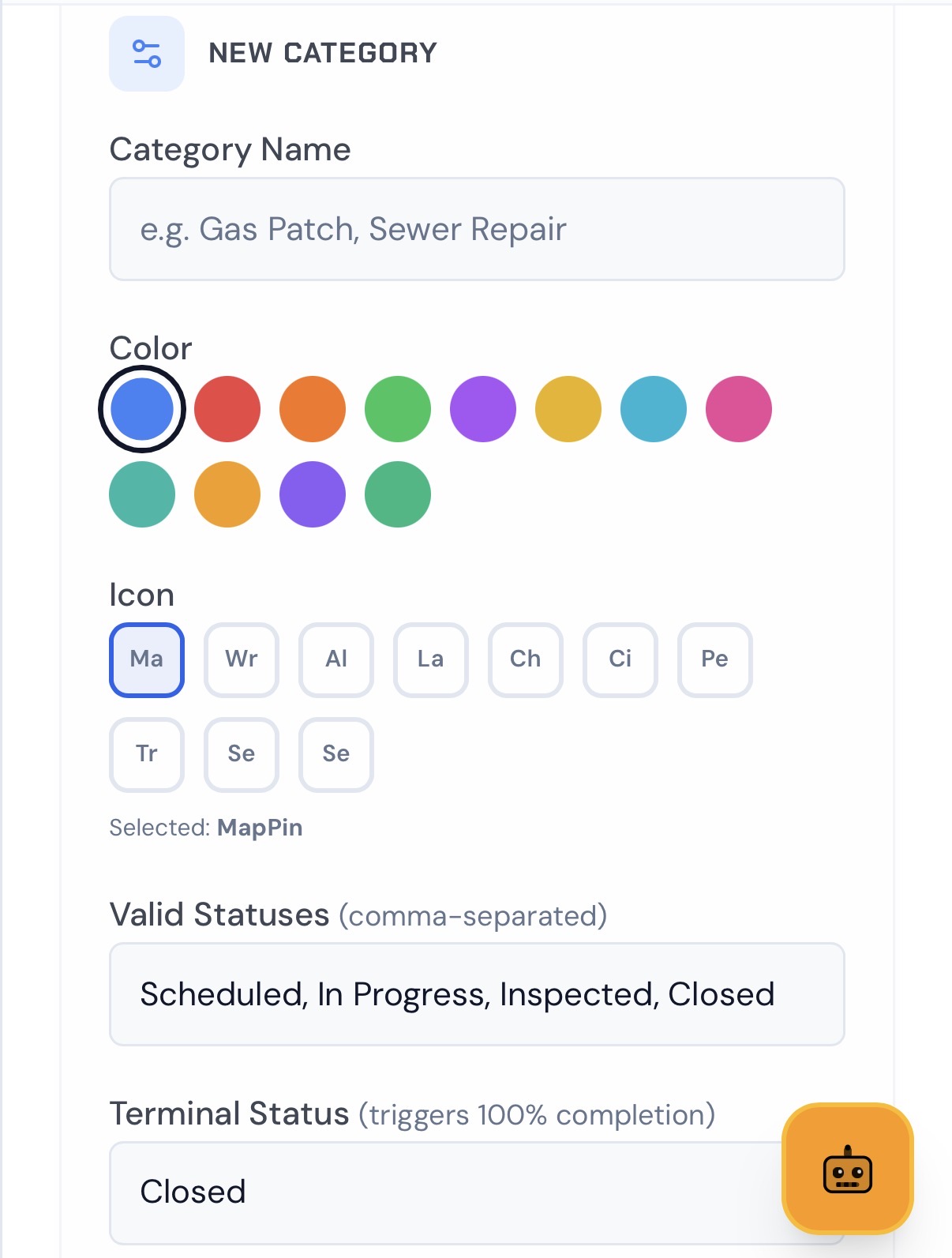
Set Custom Pins
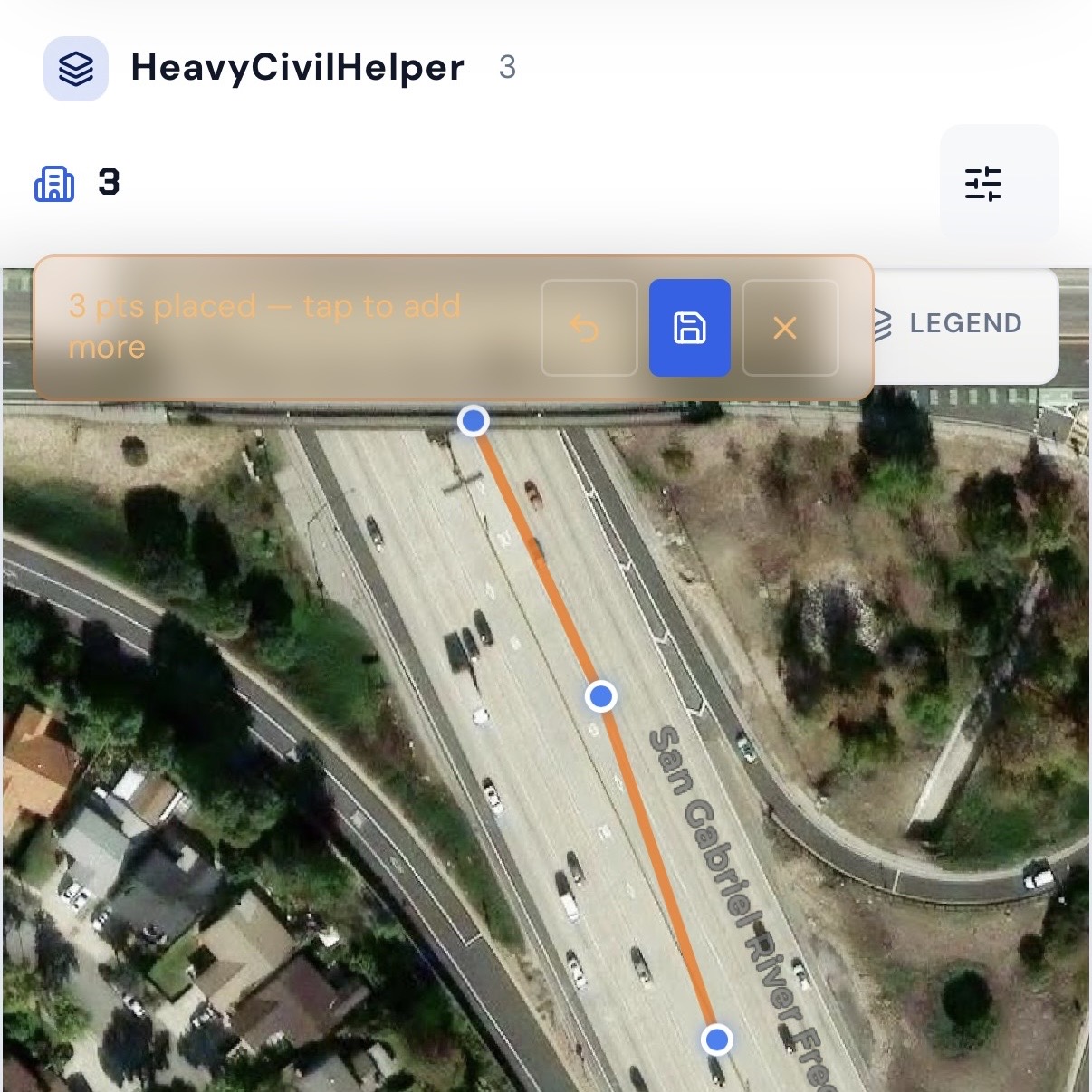
Draw Lines & Routes
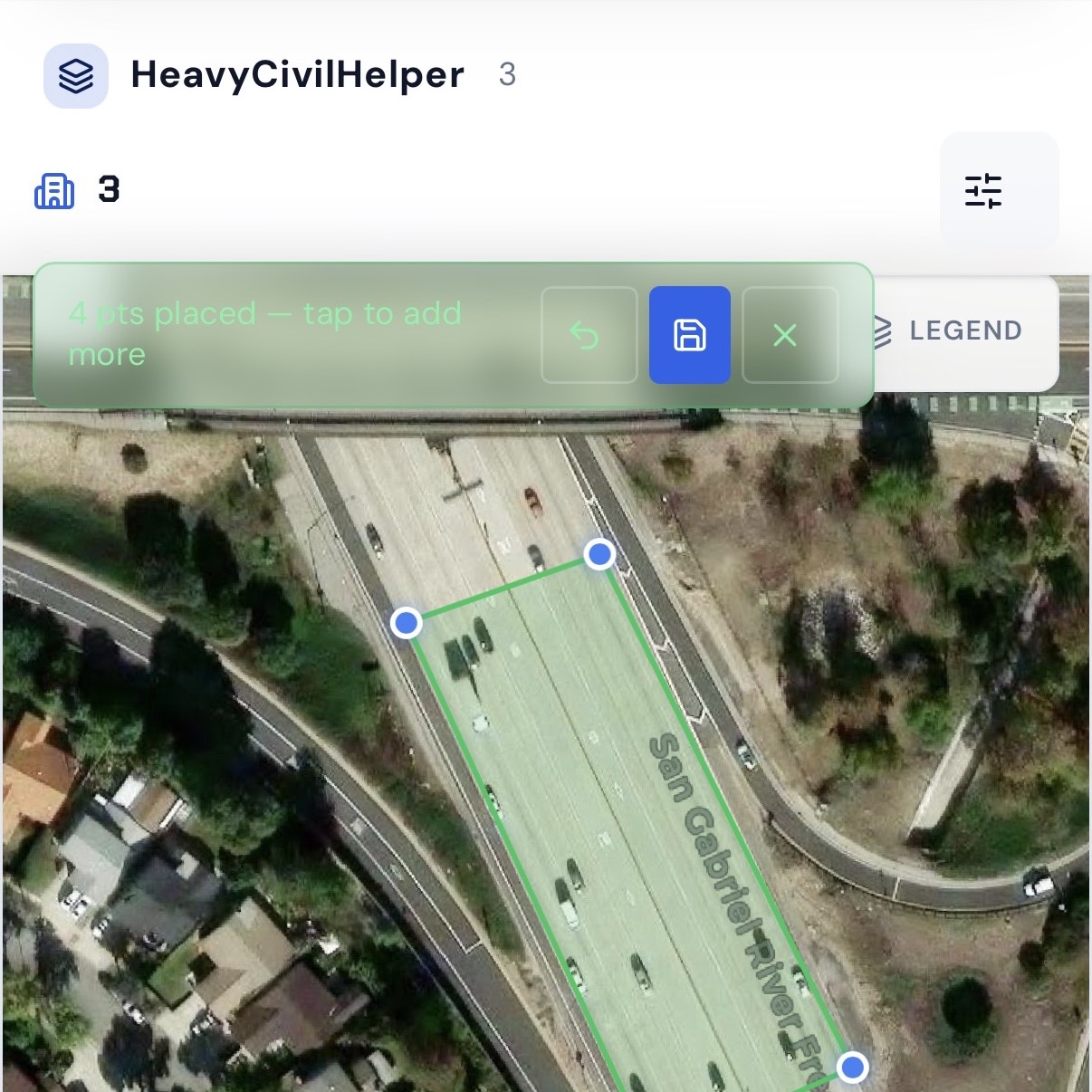
Group Work Zones and Phases
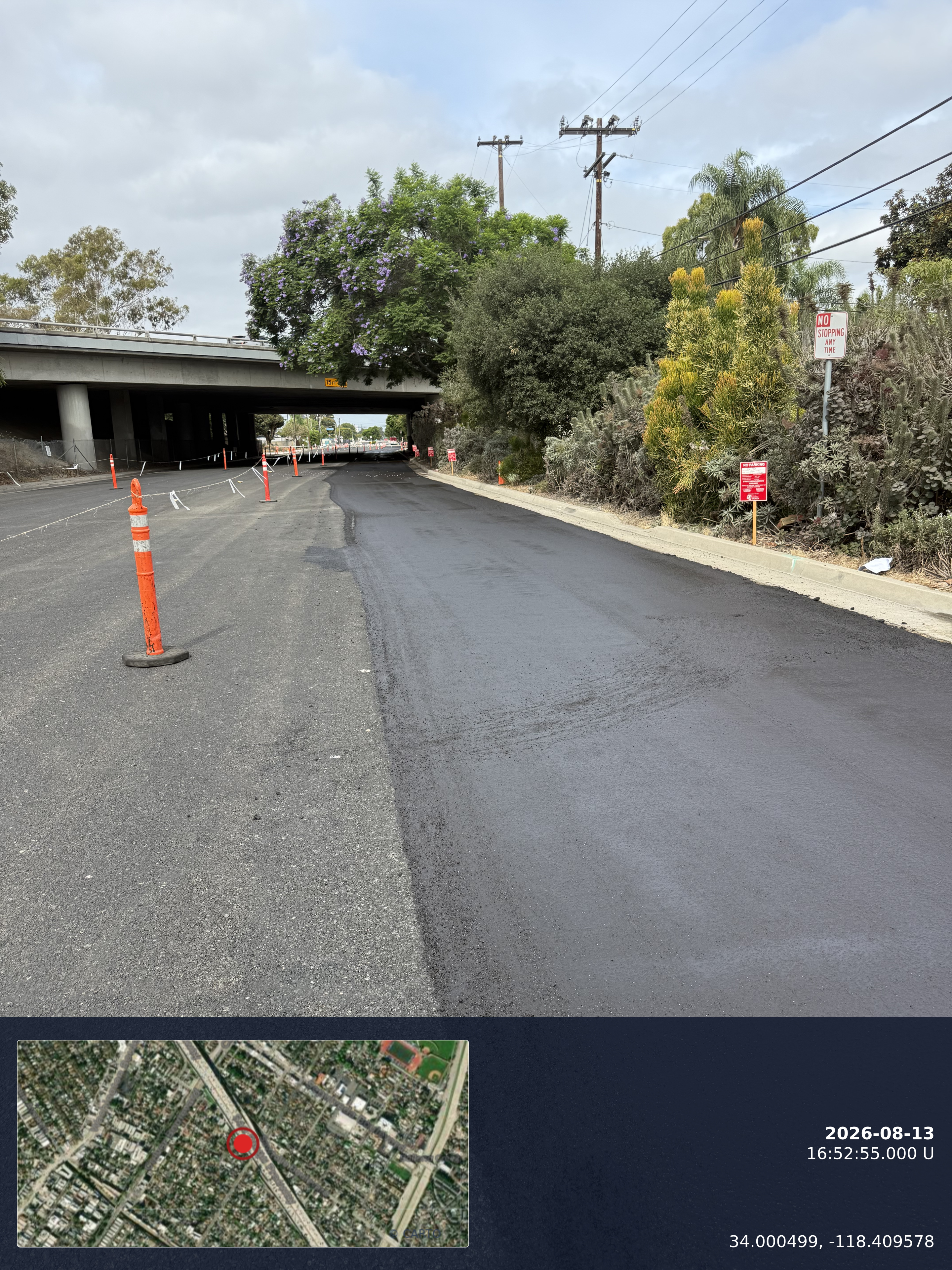
Timestamp Camera
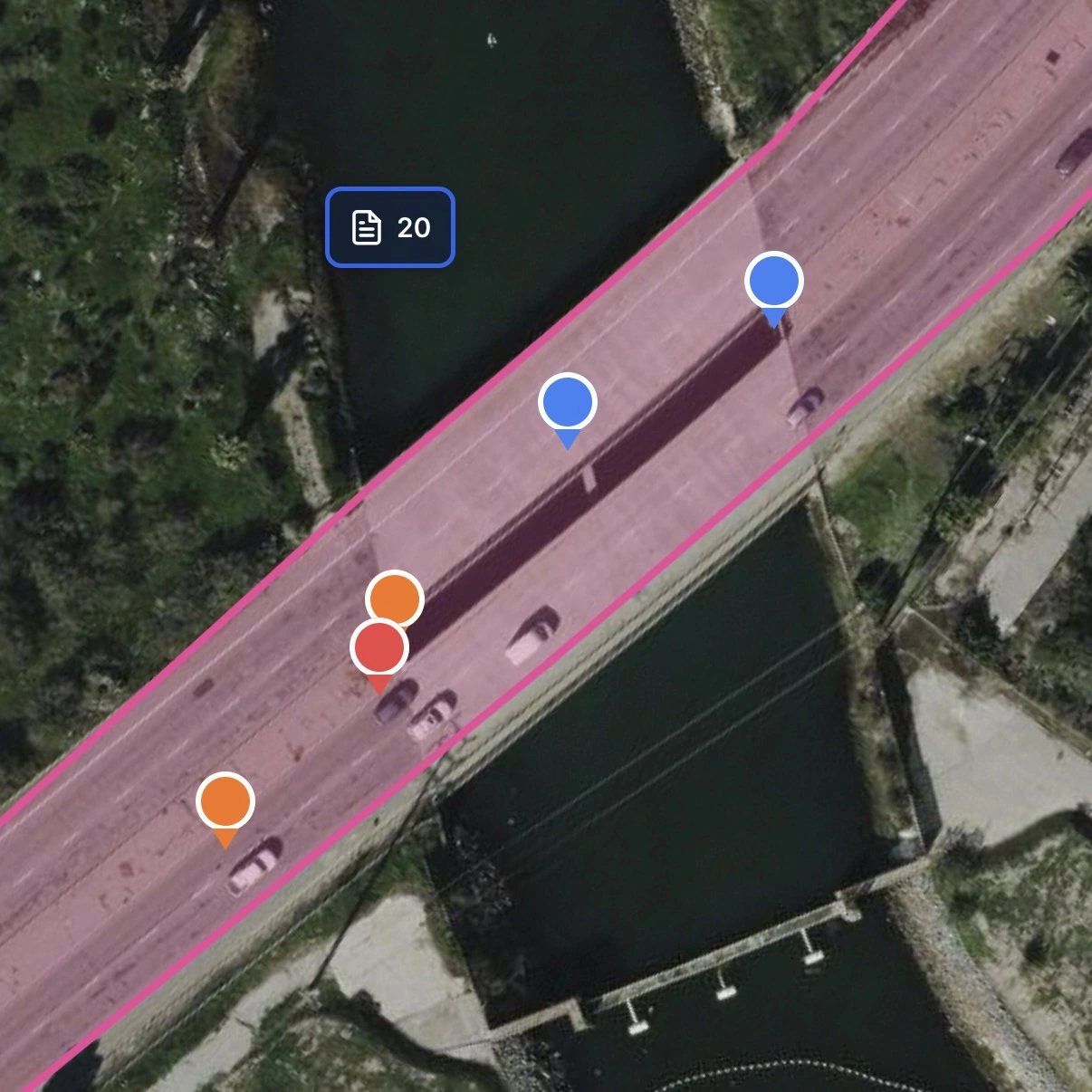
Track Multiple Records Pins
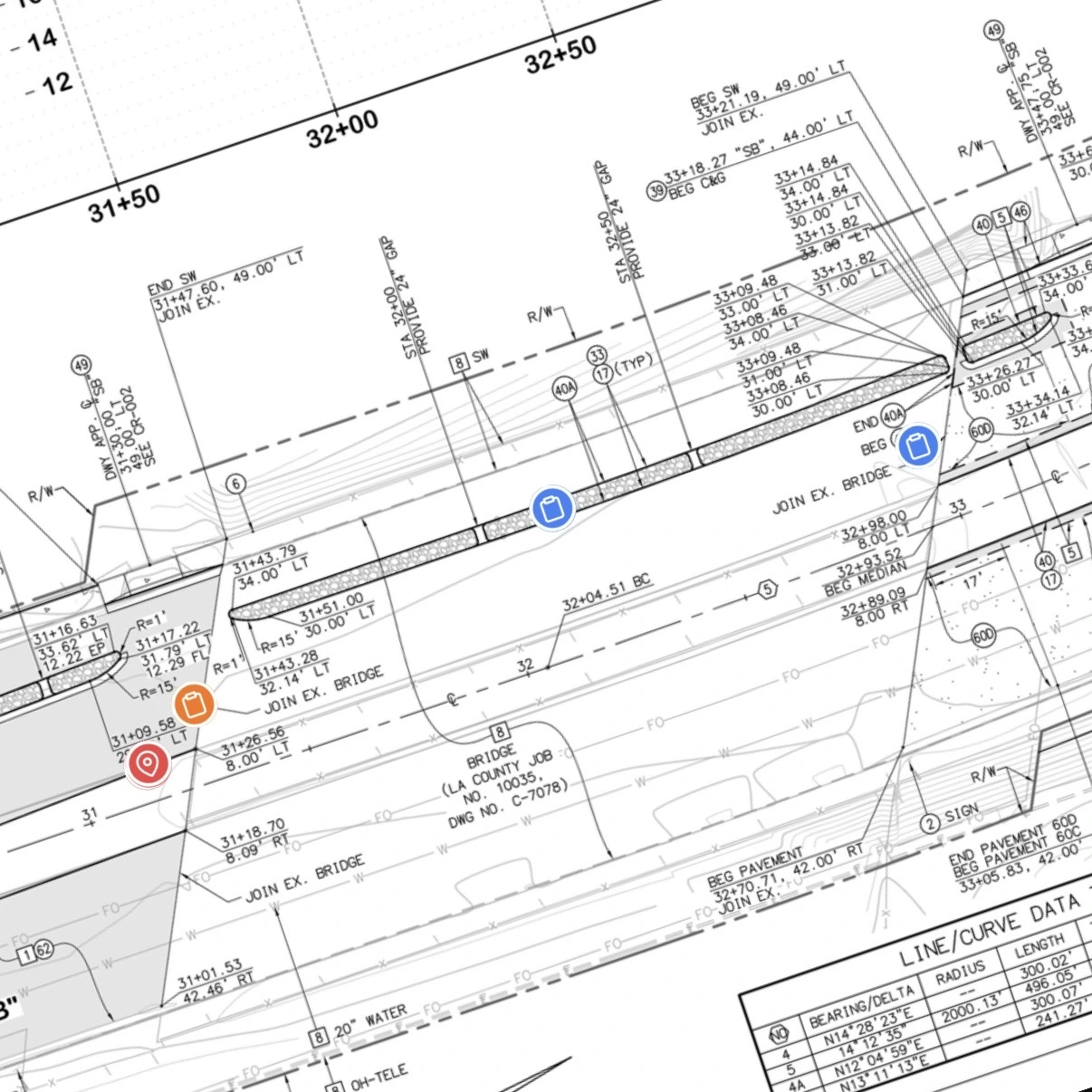
Overlay Plan Sheets
Create an account, choose Free, then add your first project.
How HeavyCivilHelper stages a material delivery from fab to acceptance
Each material pin in HeavyCivilHelper moves through a defined stage sequence — from fabrication through agency acceptance. Every stage is a distinct color on the project map. Anyone with access to the project can see where every item stands without a status meeting or a call to the yard.
In Fabrication
Material is on order or in production. The pin marks the future installation location. COC and delivery ticket fields sit empty — ready to fill the moment QC releases.
Scheduled Delivery
Fabrication complete. Delivery to yard or site is scheduled. Site prep status — collar pour, excavation, anchor bolts — tracked in the pin notes.
Delivered to Yard
Material is at the staging yard. COC and delivery ticket logged at the yard pin in HeavyCivilHelper. Awaiting crew readiness at the installation location.
Ready to Install
Material cleared QC. Crew has prepped the location. Site delivery scheduled. Everything is on deck.
Installed
Material set and secured in the field. Flow test result, torque spec, and installer name logged at the pin. Inspection request submitted.
Pending Inspection
Installed and awaiting agency sign-off. Inspector name and appointment date in the HeavyCivilHelper pin notes.
Accepted
Agency inspector signed off. As-built photo filed. COC trail complete from fabrication to acceptance — all at the GPS coordinate of that installation.
What a delivery day looks like in HeavyCivilHelper
Your driver arrives at the yard. Opens HeavyCivilHelper on their phone. The project map shows every installation location color-coded by stage — teal for accepted, green for installed, amber for ready to deliver, gray for still in fab. They can see at a glance which location is today's stop without a call to the PM.
They load the material, drive to the site, open the pin in HeavyCivilHelper, log the COC number and delivery ticket, add the name of the crew member who accepted it, and attach a field photo. Stage updated to Installed before they leave the site.
The PM sees the pin turn green in real time. The resident engineer opens the shared project link and sees the COC and ticket number at that location without calling anyone. No paper log. No end-of-day data entry. No status call.
See it on a real project corridor
The interactive demo shows a simulated culvert cover delivery project — a staging yard, eight installation locations at different stages of the delivery cycle, a green project corridor zone, and project limit lines at each terminus. Every pin carries a COC number, delivery ticket, and responsible party. Click any pin to see what HeavyCivilHelper shows in the field.
Open the interactive delivery tracking demo →
See it on a real map
The interactive demo loads sample data so you can click through it in under a minute.
Related
Utility Contractors
For crews installing pipe, conduit, and vaults at station-by-station locations — the same delivery and install tracking on a shared field map.
Public Works & Heavy Civil
For the GC or agency managing the overall project — how HeavyCivilHelper's map-based tracking connects the general contractor's view with your vendor delivery data.
Custom Pin Categories
How HeavyCivilHelper lets you define material categories — culvert cover, precast ring, pipe segment — with distinct stage colors and your own labels.
Environmental Service Companies
For companies deploying BMPs, portable restrooms, and fence rental to multiple sites — the same drop-and-track model HeavyCivilHelper applies to service equipment.
SWPPP and Environmental Compliance
If your deliveries include erosion control materials or BMPs, see how HeavyCivilHelper handles field compliance tracking alongside material delivery.